
Check the quote before sending another message
Open the quote you actually sent, not an old draft. Confirm the customer’s name, service address, requested work, price, exclusions and validity date. Check whether the customer has already replied by phone or another channel. Sending “any thoughts?” after they accepted on a call makes your records look disconnected.
For a pressure washing quote, the scope might name the driveway area, surface type and any excluded stain treatment. For window cleaning, it might distinguish exterior glass from interior glass, screens and tracks. The follow-up should point back to that agreed description instead of casually promising extra work.
Make sure the customer can open the quote link. Send yourself a test message when setting up your process, check the phone layout and confirm the business contact details. Do not use a follow-up to compensate for a quote that never arrived or cannot be read.
Choose a short schedule that fits the buying decision
Here is an example schedule for a routine residential service, not a proven conversion formula. Send a receipt check after two business days, a scope question about a week after the quote, and a final note near the stated validity date. Use a different schedule if the customer asks you to call next month or needs an urgent repair.
| When | Purpose | Stop or change course when |
|---|---|---|
| Two business days | Confirm the quote arrived | The customer replies or accepts |
| About one week | Resolve a scope or timing question | A conversation is already underway |
| Near the real expiry date | Close the loop | The quote is accepted, declined or withdrawn |
Avoid sending all three messages in quick succession because a customer has not opened an email. An open indicator is not a reliable explanation of what the person wants. They may be comparing scope, coordinating with a household member or simply waiting for a suitable date. Ask rather than assume.
Email 1: confirm receipt with one clear question
Subject: Your driveway cleaning quote
Hi [first name], I sent your quote for [service address] on [day]. It covers [brief scope], with [important exclusion] listed separately. Here is the link again: [quote link]. Did it arrive, and is there anything about the scope you would like me to clarify? Thanks, [your name], [business name].
Replace every bracketed field before sending. Use a short description that matches the actual line items, such as “driveway surface cleaning” rather than “everything outside.” The question asks for a reply without treating silence as permission to book the work.
If the quote has a genuine expiry date, include it plainly. If it does not, leave it out. Creating a false deadline or implying the last appointment is disappearing can make a straightforward service request feel pressured.
Email 2: help the customer compare the scope
Subject: A question about your window cleaning estimate
Hi [first name], I’m checking whether the window cleaning estimate matches what you need. It includes [interior or exterior scope] and [included items]. [Screens or tracks] are [included or excluded]. Would you like to keep that scope, or should I revise it before you decide? Your estimate is here: [quote link]. Best, [your name].
This message is useful when similar-looking quotes cover different work. It does not claim that another company forgot something or that your price is automatically better. If the customer wants a smaller scope, send a revised quote with the changed items and total instead of negotiating an unclear discount in the email thread.
For a cleaning service, replace the window details with the rooms and cleaning tasks included. For lawn care, name the visit frequency and whether clippings, edging or seasonal work are part of the price. Keep the question specific to the service the person requested.
Email 3: close the loop without assuming rejection
Subject: Should I keep your [service] quote open?
Hi [first name], I’m closing the loop on the [service] quote for [address]. If you still want to move ahead, you can review it here: [quote link], or reply with a question. If the timing has changed, let me know and I’ll stop the reminders. [Only if true: This quote is valid through date.] Thanks, [your name].
A final note should reduce uncertainty for both sides. If the customer asks you to stop, stop. If they request a later conversation, record that date and cancel the existing sequence. Do not automatically label a silent customer as lost forever or keep recycling them through the same messages.
Keep scheduling promises separate from quote acceptance. Unless you have actually reserved a slot, say you will confirm availability after acceptance. This avoids two customers believing they have been promised the same crew and arrival window.
Handle the reply before another reminder goes out
- Accepted: confirm the selected scope, next step and appointment process. Stop quote reminders.
- Question: answer the question and record the conversation before scheduling another follow-up.
- Price concern: clarify what can change in the scope; revise the quote if needed.
- Not now: agree on whether and when the customer wants another contact.
- Declined or stop request: end the sequence and record the outcome.
Choose one person to own the open quote list. On a small team, that may be the owner; on a larger team, it may be the office coordinator. The important part is that a technician’s phone conversation reaches whoever manages reminders. Software cannot replace a decision that was never recorded.
Review a small batch of quotes regularly. Track how many customers replied, asked for changes, accepted or declined. Separate those outcomes from email opens and avoid declaring that a template increased sales after only one or two replies. The purpose of the review is to improve clarity and follow-through, not to manufacture a success statistic.
How do you review a quote reminder in OmniOps?
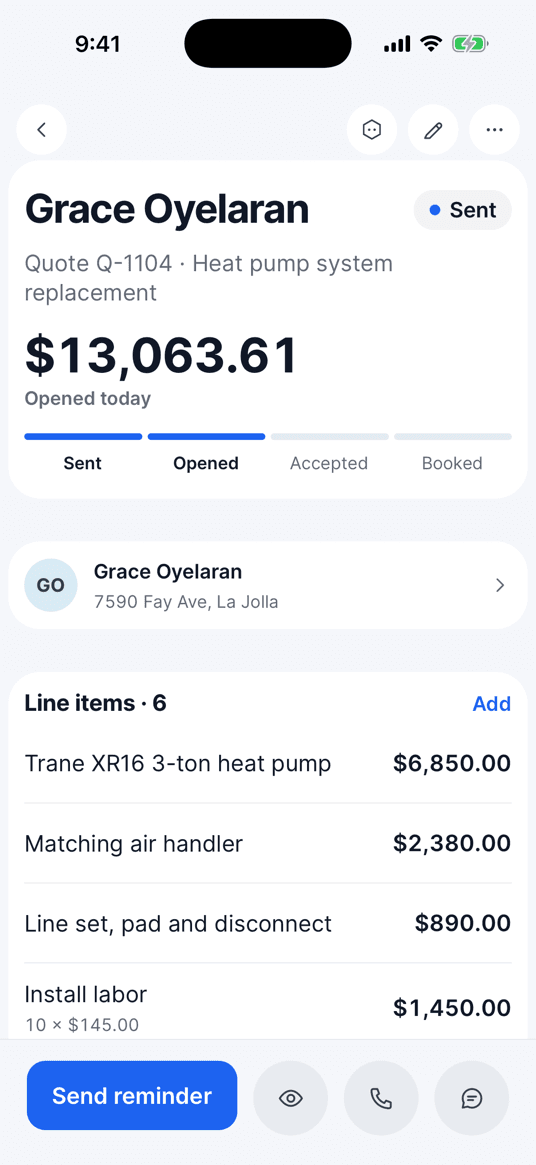
Open the sent quote and check its status, line items and latest conversation before reminding the customer. The mobile demo below shows a heat-pump quote marked Sent and Opened today; that is not the same as an accepted quote or a booked job. The names, address and amounts belong to the demo workspace.
- Check the scope and validity date. If the customer wants different work, revise the quote before following up. Check for a reply outside the app as well.
- Choose Send reminder when it is offered. On the desktop, review the recipient, channel and message in the confirmation sheet before sending. If the app instead offers Re-send, that action sends the quote and its signing link again.
- Check the delivery result. Texting setup and the customer’s contact details affect which channel is available; pressing a button is not proof that the customer received or accepted the quote.
- If Auto follow-ups active is shown and you need to pause the sequence, choose Stop and wait for confirmation. Update the quote and your notes after the customer replies so the next person sees the current situation.
The three email templates above are manual writing examples, not the built-in reminder’s message or automatic schedule. Use them in your normal email process after replacing the placeholders. Review the app’s displayed message separately when using its reminder action.
Keep your estimate, follow-up and next job connected
These templates work with a simple manual list as well as software. Record the quote number, sent date, next contact date and latest outcome. In OmniOps, quotes and follow-ups are part of the workflow; inspect your settings and test the customer experience before relying on automated reminders.
Still building your service business? Start with how to start a pressure washing business or how to start a window cleaning business. For cleaning frequency and scope questions, use the recurring cleaning pricing worksheet. Read OmniOps pricing and trial terms if you want to manage the workflow in the app.