
Take card payments on your iPhone. No card reader.
Tap to Pay on iPhone turns the phone your tech already carries into the card reader. The customer taps their card, phone or watch on the back of the iPhone and the invoice is marked paid.
What it does
No extra hardware
Nothing to buy, charge or pair. The iPhone in your pocket takes the payment.
Paid against the invoice
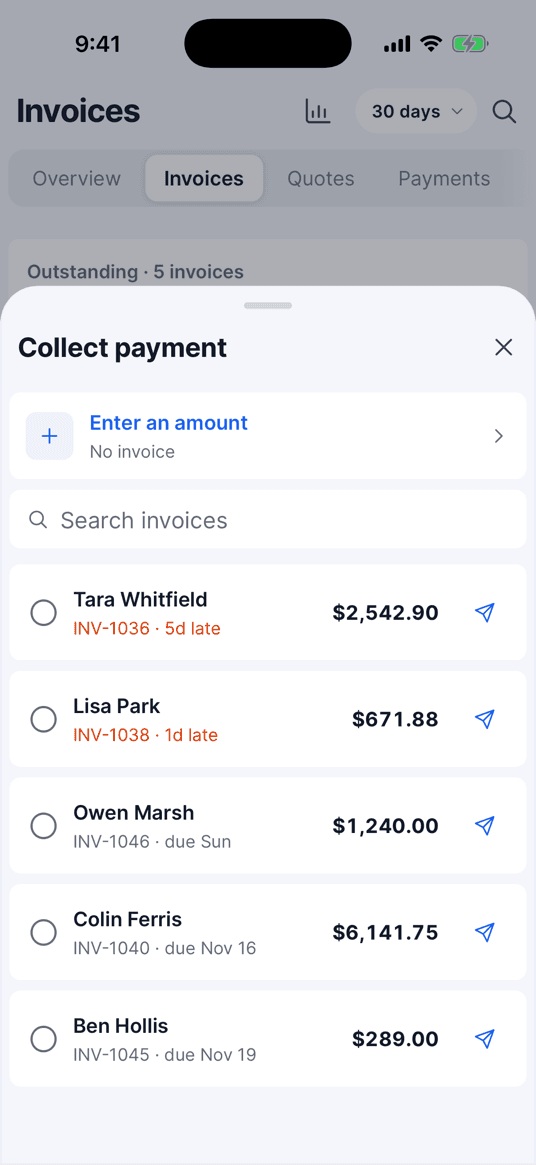
Pick the invoice, or enter an amount. The payment is recorded on that job and customer.
Into your payouts
Card payments run through your Stripe account and show in Payouts with the rest.
Receipt by text or email
Send the customer a branded receipt by text or email.
How it works
Connect your Stripe account in setup.
At the job, open Collect payment and pick the invoice.
Choose Tap to Pay and hold the iPhone out to the customer.
They tap their card, phone or watch. The invoice shows paid.
What’s included
In every plan. The computer and the iPhone app share one account.
| Feature | Computer | iPhone |
|---|---|---|
| Tap to Pay on iPhoneTake a card in person. No card reader needed. | — | ✓ |
| Collect paymentCard, cash, check, Venmo or Zelle | ✓ | ✓ |
| Card on fileCharge the saved card when the job is done | ✓ | ✓ |
| Statements and receiptsBranded, sent by text or email | ✓ | ✓ |
| PayoutsYour balance and when it lands | ✓ | ✓ |
| StripeCard and bank payments, paid out to your account | ✓ | ✓ |
Questions people ask.
Do I need a card reader?
No. Tap to Pay on iPhone uses the iPhone itself. Customers tap a contactless card, an iPhone or an Apple Watch, or another phone with a wallet.
What if I’m not at the job?
Tap to Pay on iPhone is in the OmniOps iPhone app. From anywhere you can send a pay link, charge a card on file or record cash and checks.
Who processes the payment?
Stripe. You connect your own Stripe account and payments are paid out to your bank from there.